Admin
The Admin section holds company settings, and most of its pages are for Org Admins.
Members and invites
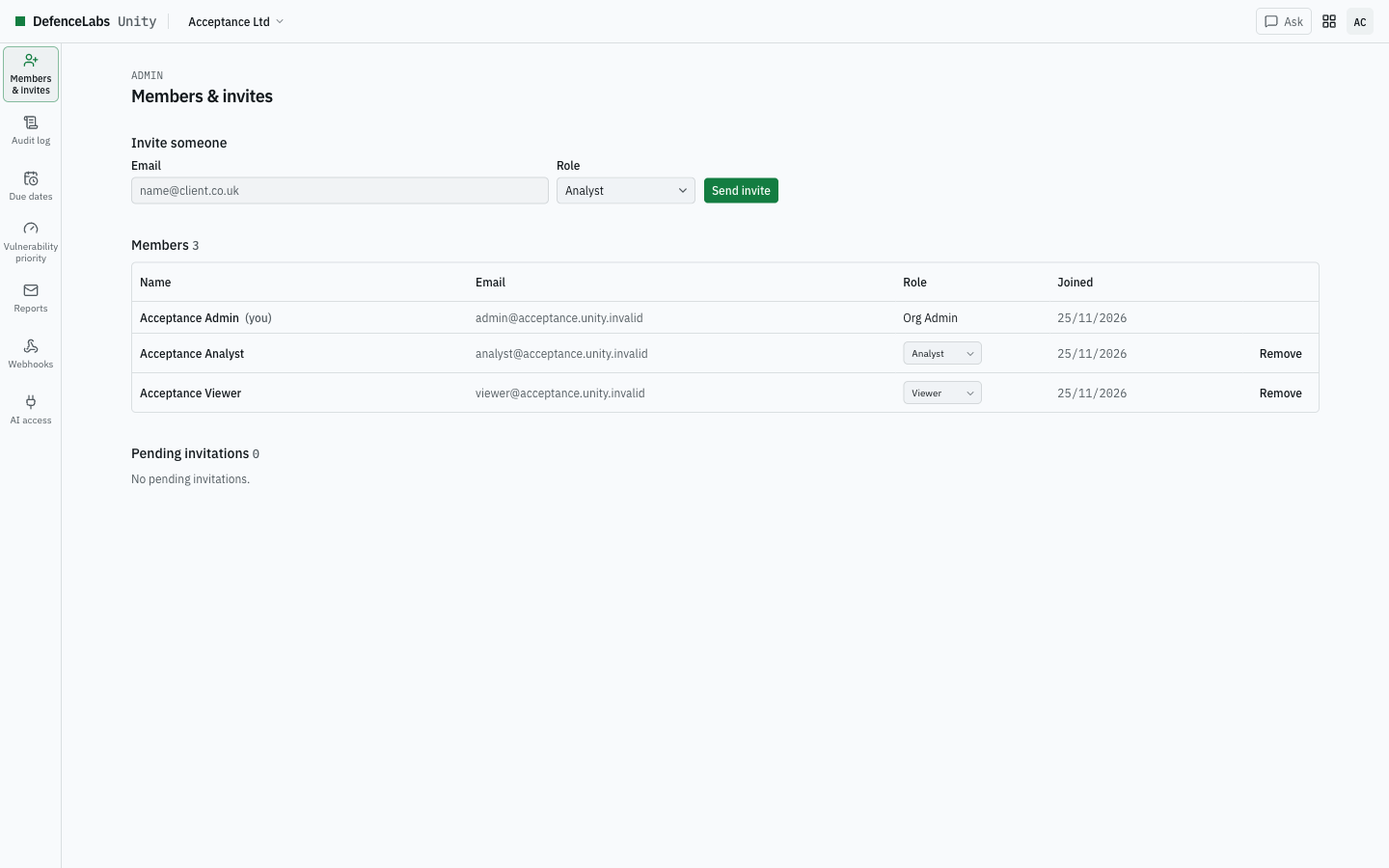
Admin → Members & invites lists everyone in the company and their role. To add someone, enter their email address, choose a role and press Send invite. They must sign up with that address. From the same page you can change a member's role, remove a member, or cancel an invitation that hasn't been accepted. The roles table explains what each role can do.
Audit log
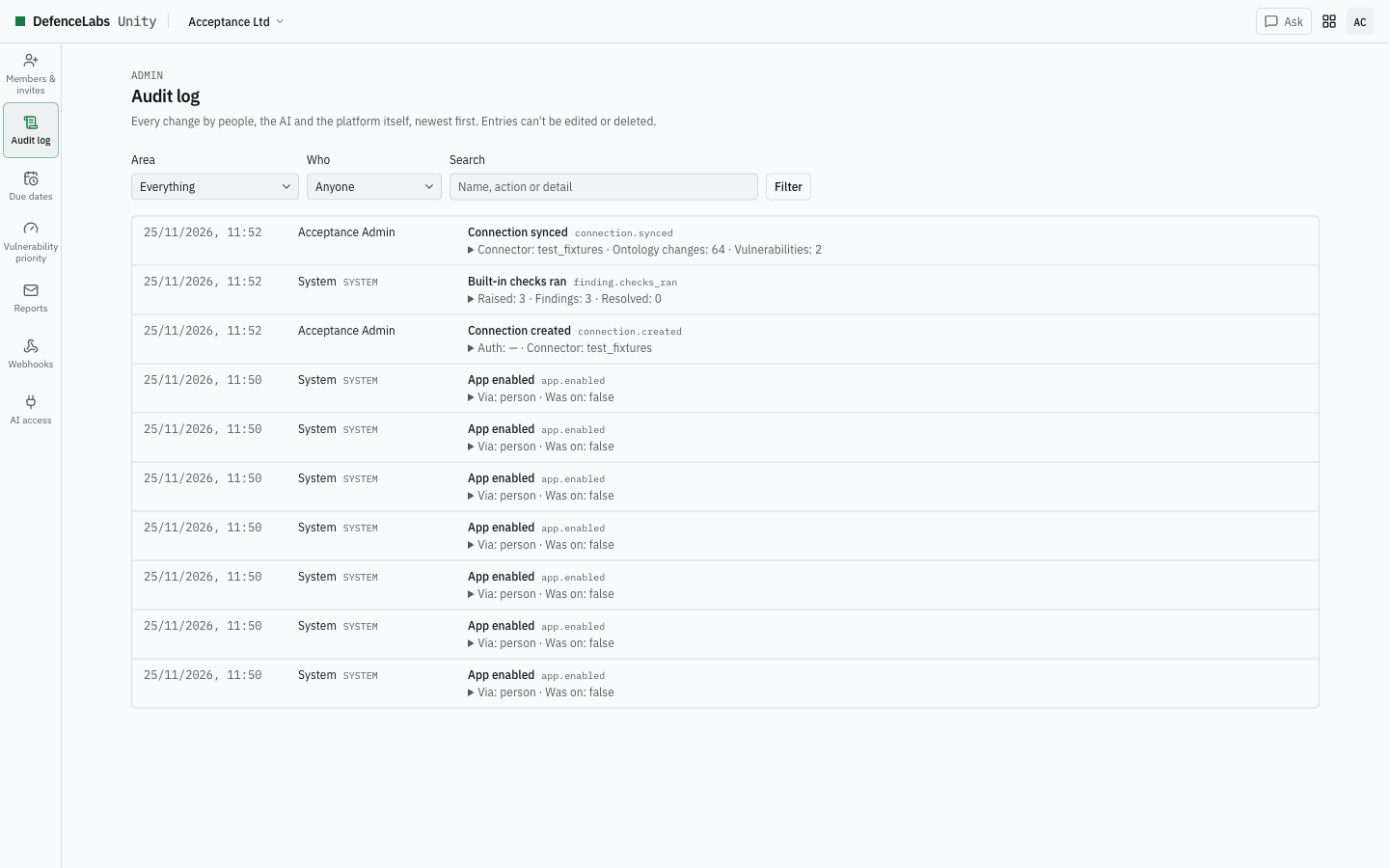
Admin → Audit log records every change made by people, by the AI and by Unity itself, newest first. That includes sign-ins, connections and syncs, finding decisions, workflow approvals, settings changes and every question asked through Ask or a connected AI app. Filter by area and by who made the change, or search. Nobody can edit or delete an entry.
Due dates
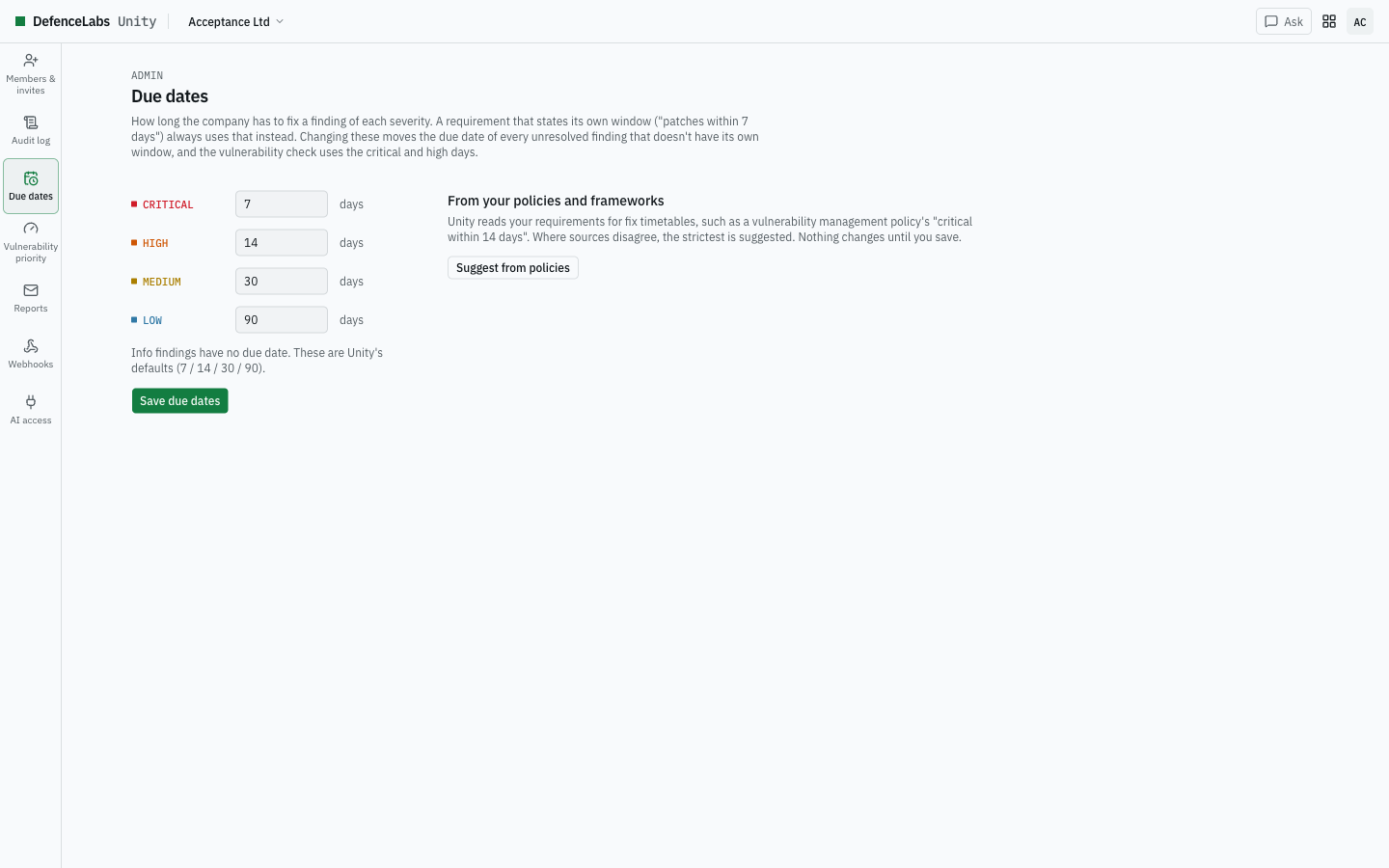
Admin → Due dates sets how many days the company has to fix a finding of each severity. The defaults are 7, 14, 30 and 90 days for critical, high, medium and low. Unity also reads your requirements for deadlines, such as "critical within 14 days" in a vulnerability management policy, and suggests the strictest. Changing a value moves the due date of every unresolved finding that doesn't have its own deadline.
Other settings
- Vulnerability priority: set how much a vulnerability's EPSS score (the likelihood it will be exploited) raises its priority.
- Reports: see who receives the weekly and monthly reports by email.
- Webhooks: some workflows start when an app sends Unity an event instead of on a schedule. Approving such a workflow creates its webhook address, and the workflow comes with step-by-step setup instructions for the sending app. An Org Admin issues the webhook's secret here. Unity shows it once, and issuing a new one revokes the old one.
- Jira: allow analysts to create Jira issues from findings, and set the default project, issue type and labels. This page appears once Atlassian is connected.
- AI access: see the AI apps members have connected to Unity, and remove this company from any of them.
Connecting an AI app
Members can connect an AI app that supports MCP, such as Claude, to Unity at https://unity.periculo.co.uk/api/mcp. You sign in with your normal Unity login, and no API key is needed. The AI app can read only what your role allows, it can't change anything, and every question it asks is recorded in the audit log. To disconnect an app, use AI apps in your account menu. Org Admins can also remove the company from an app in Admin → AI access.