Getting started
Signing in
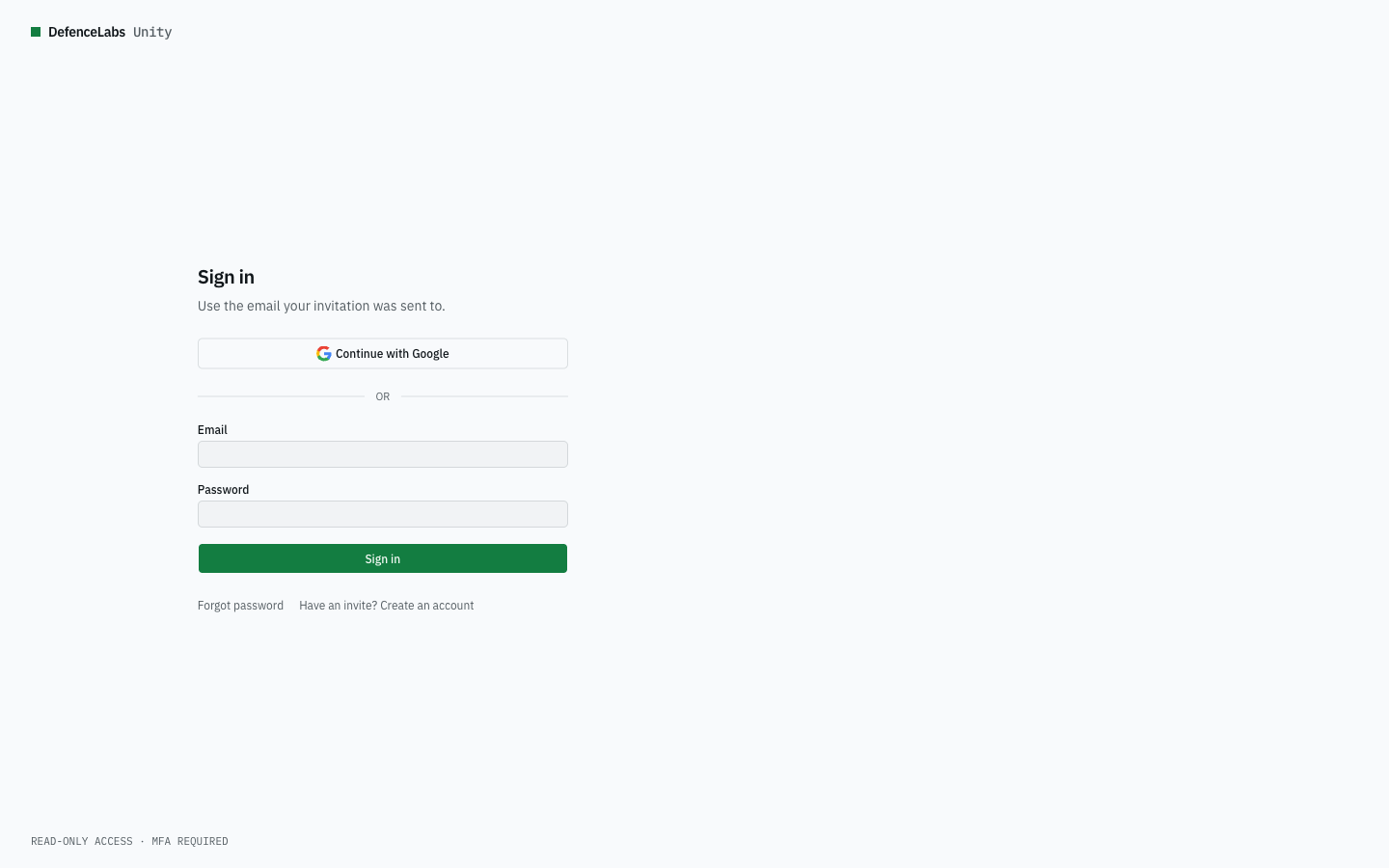
Unity is at unity.periculo.co.uk. Access is by invitation only: an admin in your company, or your Periculo consultant, sends you an invite by email.
- Open the link in your invitation and create an account with the same email address. You can also use Continue with Google if your company uses Google Workspace.
- Set up multi-factor authentication. Unity asks for a code from an authenticator app (such as Microsoft Authenticator, Google Authenticator or 1Password) and won't let you in without one.
- From then on, sign in with your email and password, then enter the 6-digit code from your app.
If you forget your password, use Forgot password on the sign-in page.
Roles
Everyone in a company has one of three roles. An Org Admin can change someone's role in Admin → Members & invites.
| Role | What they can do |
|---|---|
| Viewer | See everything in the company, but change nothing. |
| Analyst | Everything a Viewer can, plus triage findings, approve workflows, manage exceptions and create Jira issues from findings. |
| Org Admin | Everything an Analyst can, plus invite and remove members, connect and disconnect apps, and change company settings. |
If you belong to more than one company, switch between them with the company selector at the top left.
Finding your way around
Unity is split into five sections. Choose one from the button at the top right, then use the tiles down the left to move between its pages.
- OS: what's wrong right now. The overview, every finding, people, vulnerabilities, attack paths, changes and reports. See Intelligence and findings and People, vulnerabilities and attack paths.
- Agents: the workflows that check your apps. See Workflows.
- Ontology: what Unity knows about your company, including your policies, requirements and frameworks. See Ontology.
- Admin: members, the audit log, due dates and other settings. See Admin.
- Marketplace: connect apps and turn features on and off. See Marketplace.
Your account menu (your initials, top right) holds the light and dark theme switch, a layout switch, and the AI apps you've connected.
Asking questions
The Ask button at the top of every page answers plain-English questions about your company, such as "who are our admins without MFA?" or "which devices haven't checked in this month?". If you're looking at a finding, person or vulnerability, Ask knows which one and uses it as context.
Ask answers only from what Unity holds about your company, and it can't change anything. Under each answer, How Unity answered shows the lookups it made, so you can check its working. Every question is recorded in the audit log.