Intelligence and findings
A finding is a problem Unity has found: an admin account without MFA, an unapproved app in use, a device that has stopped checking in. Findings come from two places. Unity's built-in checks run every hour against everything it knows, and your approved workflows run on their own schedules.
Overview
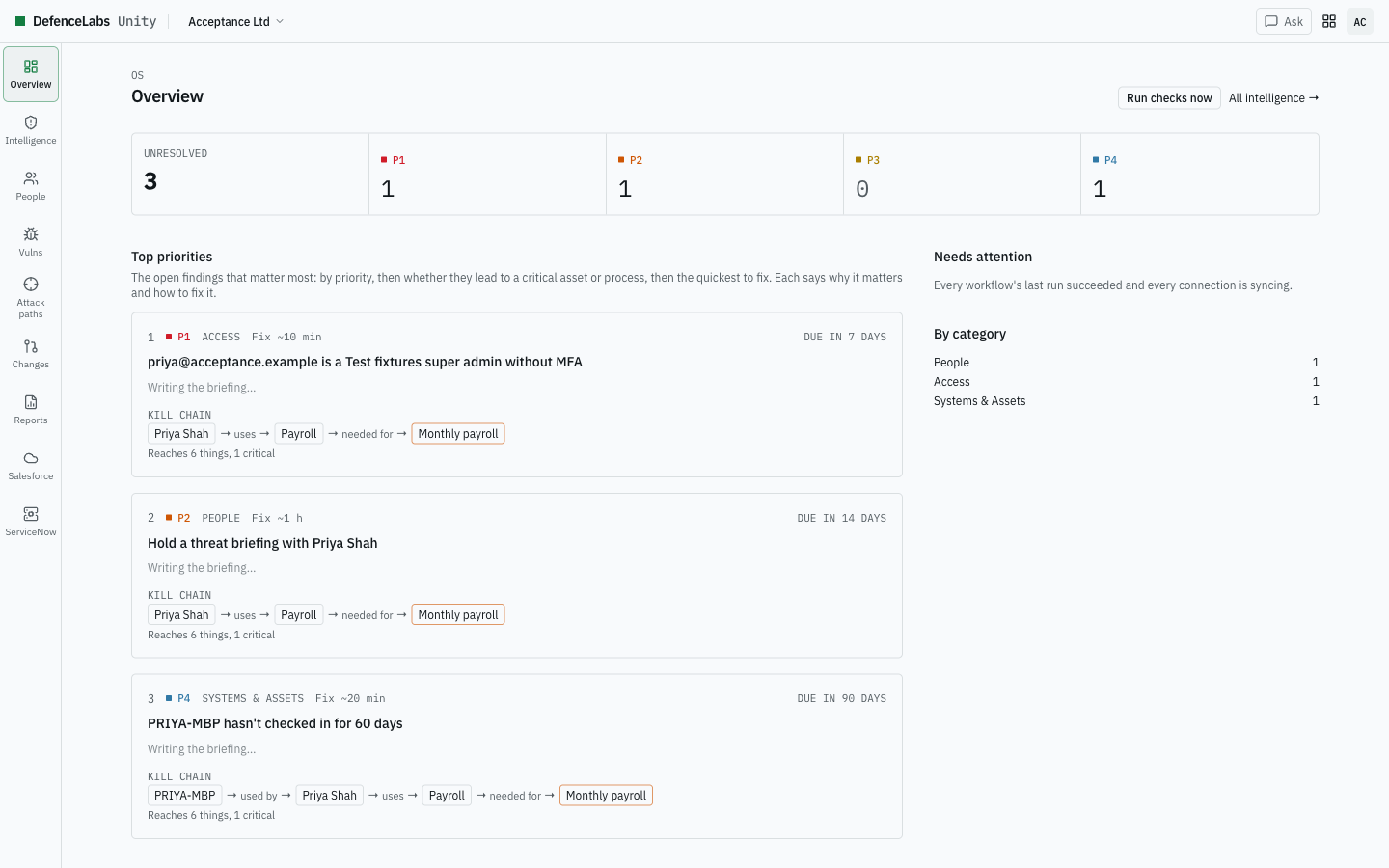
OS → Overview is the page to start your day on. It shows how many findings are unresolved at each priority, then your top priorities: the open findings that matter most, ranked by priority, then by whether they lead to a critical asset or process, then by how quickly they can be fixed.
Each card shows:
- the priority (P1 is the most urgent) and category
- a rough time to fix and when it is due
- a short briefing on why it matters and how to fix it
- the kill chain: how the problem connects to something critical, for example a person who uses the payroll app, which the monthly payroll process needs
Needs attention on the right lists workflows whose last run failed and connections that have stopped syncing. Run checks now runs the built-in checks straight away instead of waiting for the next hour.
The Intelligence table
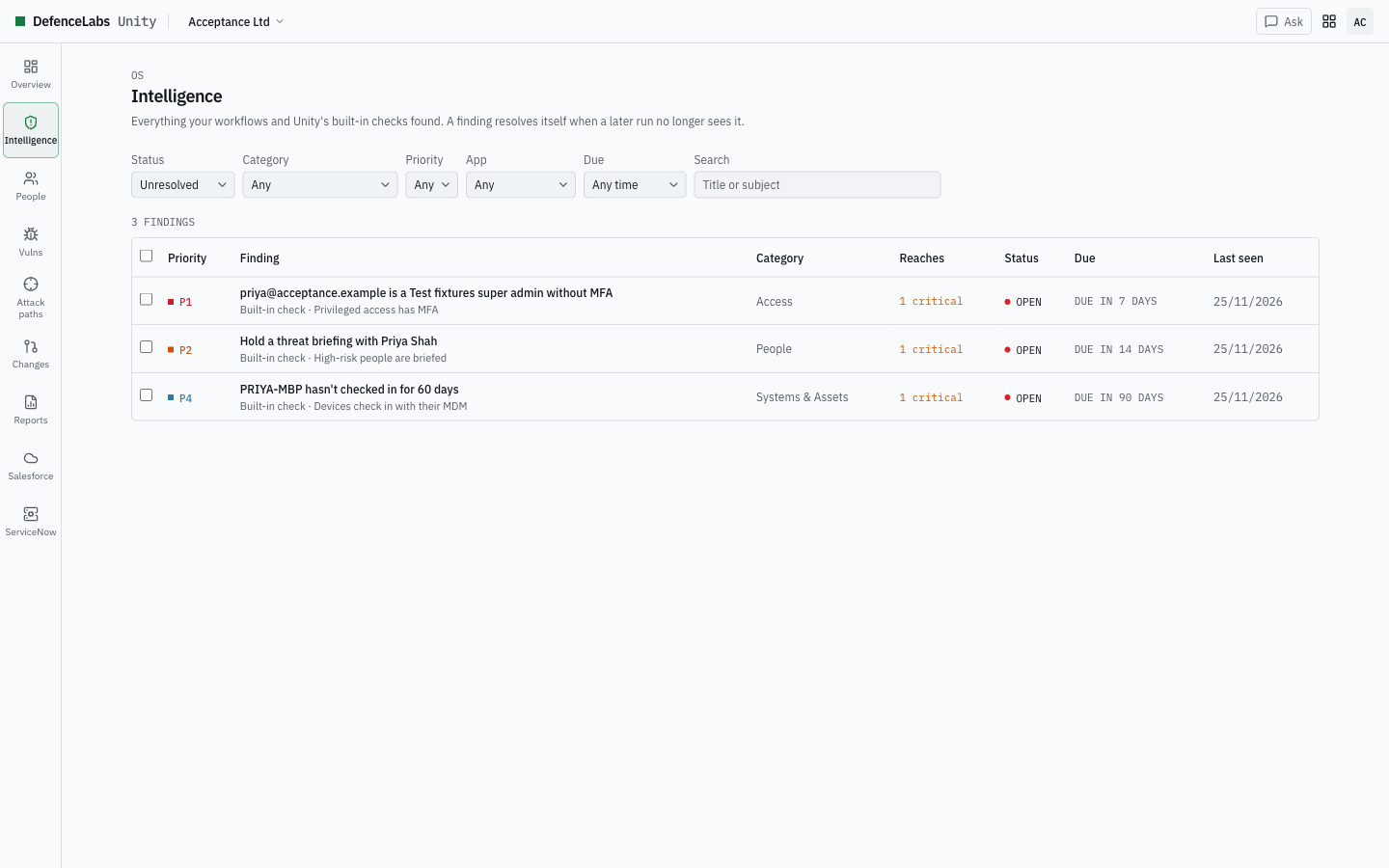
OS → Intelligence lists every finding, ranked the same way as the overview. Filter by status, category, priority, the app that raised it and due date, or search by text. Analysts can select several findings at once and change their status together.
A finding's page
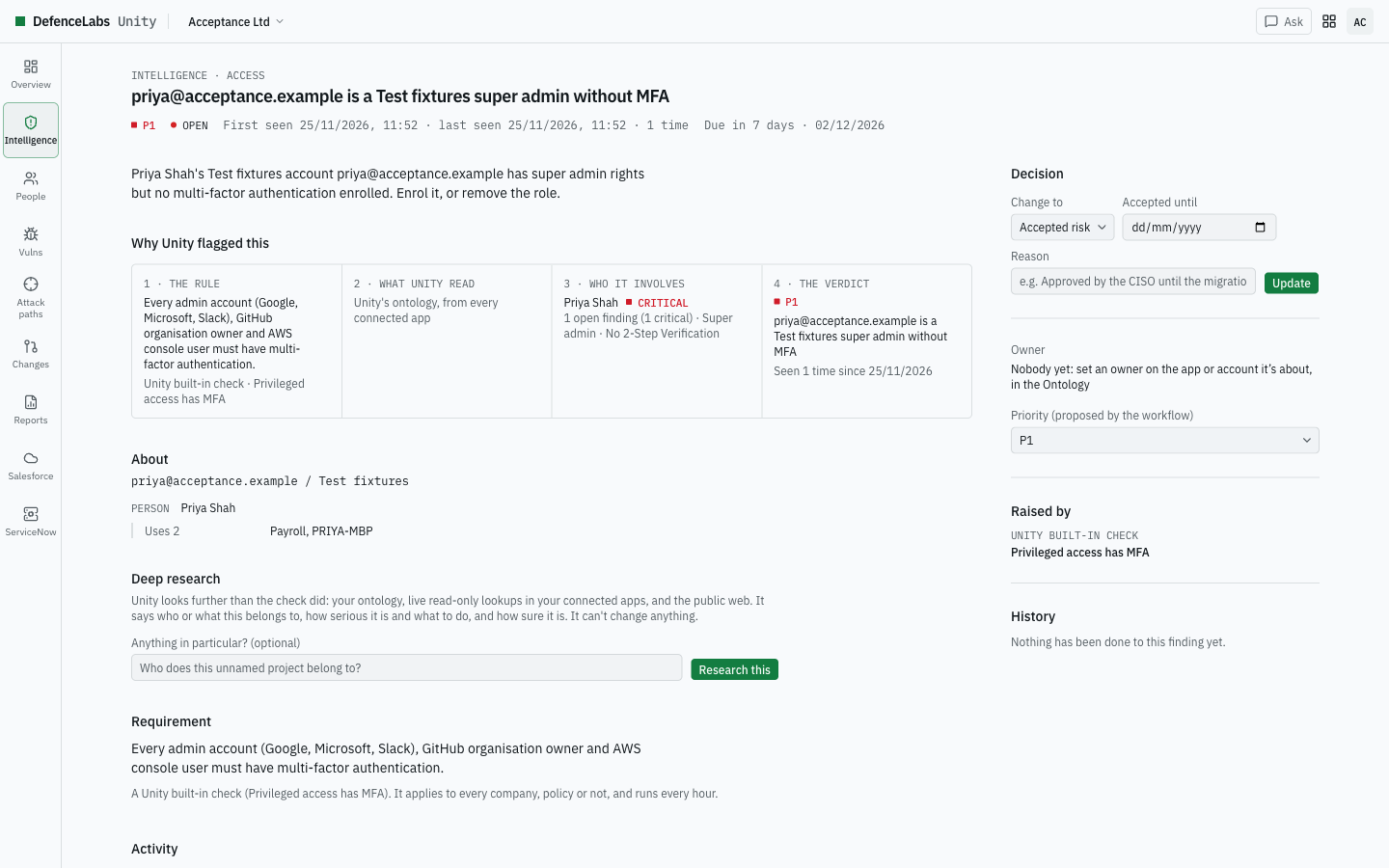
Open a finding to see:
- what is wrong and how to fix it
- Why Unity flagged this: the rule it broke, what Unity read, who it involves and the verdict
- the people, apps and devices it involves, with links to each
- the requirement behind it, so you can trace it back to your policy or framework
- a timeline of everything that has happened to it
Deep research
Analysts can press Research this to have Unity look further than the original check did. It searches what Unity already knows, makes live read-only lookups in your connected apps and searches the public web. It then reports who or what the finding belongs to, how serious it is, what to do, and how confident it is. You can add a question to point it in a particular direction. Research can't change anything.
Statuses
| Status | Meaning |
|---|---|
| Open | The problem is current and nobody has made a decision about it. |
| Accepted risk | Someone has decided to live with it, with a reason. It can have an expiry date, after which it reopens. |
| False positive | The finding is wrong. If a workflow collects three or more false positives, it is flagged for review. |
| Resolved | The problem has gone. Unity resolves findings itself when a later check stops seeing them, and adds a note on how it was fixed where it can tell. Resolving one by hand needs a reason. |
If Unity sees a resolved problem again, the finding reopens. An accepted risk or false positive keeps its status when the problem is seen again.
Unity isn't a ticketing tool. There are no comments or assignees on findings. The owner is worked out from who owns the account or app involved, and the work itself happens in your own ticketing system.
Due dates
Each finding gets a due date from its severity. The defaults are 7 days for critical, 14 for high, 30 for medium and 90 for low. A requirement that sets its own deadline, such as "critical patches within 14 days", uses that instead. Org Admins can change the defaults in Admin → Due dates.
Sending a finding to Jira
If your company has connected Atlassian and an Org Admin has allowed it in Admin → Jira, analysts see Create Jira issue on each finding. The issue starts from the finding's title, detail, priority, due date and a link back, and you can edit everything before creating it. A finding goes to Jira once, and its page then links to the issue.
This is the only time Unity writes to one of your systems, and only when a person presses the button.